 See all blog posts
Building a Retrieval-Augmented Generation (RAG) application by using LangChain4j and MongoDB Atlas vector database

Artificial Intelligence (AI) and generative AI have significantly impacted the economy and transformed how businesses operate. Generative AI uses Large Language Models (LLMs) to generate text through probabilistic methods. These models are often trained on historical data, and the training data may lack domain-specific or specialized knowledge. To address this limitation, Retrieval-Augmented Generation (RAG) can be used to provide relevant and up-to-date information efficiently and effectively. The data used in RAG can come from various sources, including websites, vector databases, and images. As a result, multiple forms of RAG have emerged. For example, multimodal RAG works with different types of unstructured data, such as text and images, while Graph RAG uses knowledge graphs as the information source.
This post demonstrates how to build a RAG application using LangChain4j to connect to AI provider models and store textual data in a MongoDB Atlas database. In this sample application, a local MongoDB Atlas deployment is used. This example also uses a vector database. Vector databases play an important role in developing a wide range of use cases, including natural language search and recommendation systems. Moreover, MongoDB Atlas Vector Search provides an option for hybrid search that combines vector search with full-text search. Additionally, MongoDB Atlas scales vector search independently from the core database which can improve performance in production environments.
What is Retrieval-Augmented Generation (RAG)?
Retrieval-Augmented Generation (RAG) is an architectural approach that combines information retrieval with generative AI to deliver accurate and context-aware responses while avoiding costly retraining. Without RAG, an LLM is limited to the information available during training and cannot reliably access proprietary business knowledge, including internal policies of a company, processes, and domain-specific documentation.
There are different RAG techniques such as naive, advanced, and modular RAG. To learn more, visit RAG techniques or LangChain4j tutorials. The focus of this tutorial is to learn the technique of data retrieval from the vector database.
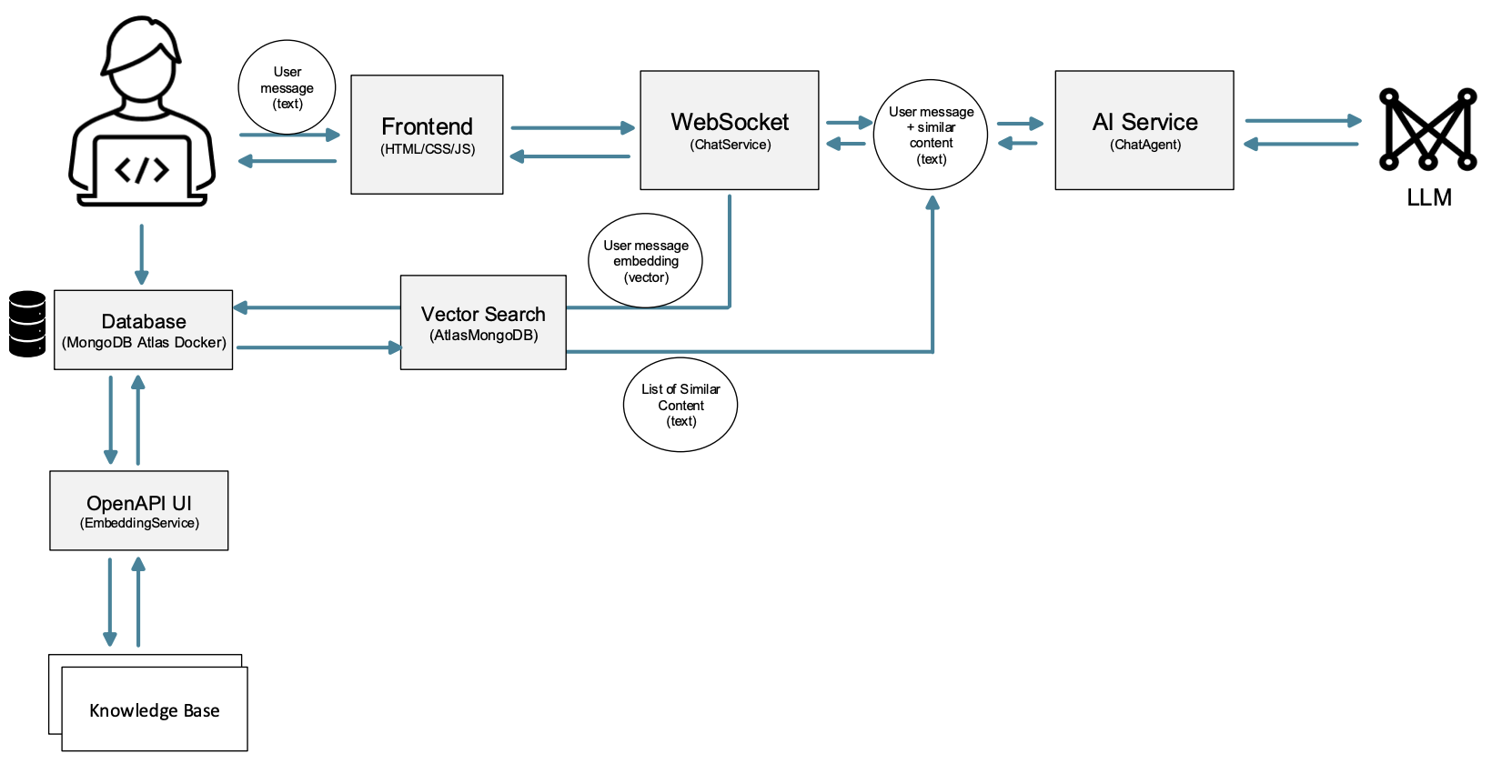
This sample application contains two demonstrations. The vertical flow of the architecture diagram illustrates database management; this will be the first demonstration. The horizontal flow of the architecture diagram depicts inference or data retrieval from the database to the LLM; this will be the second demonstration.
In the vertical flow, the first step is to process and store the content as embeddings (vectors) inside the database. Each embedding corresponds to some text data.
The horizontal flow starts when the user sends a message to the AI application. When the user submits a query, the query is converted to an embedding; notice the user message embedding on the diagram. The query embedding and the knowledge base embeddings are compared, as shown in the interaction between the vector search block and the database. Similar database embeddings are obtained from the vector search block output and their respective content is obtained, as shown in the circled list of similar content.
Following the arrow direction in the figure, the similar content (from the knowledge base) is appended to the user query. This becomes the augmented message sent to the Chat Agent which is responsible for calling the LLM. The LLM now gains access to the relevant content from the knowledge base and can generate a specific response based on the information.
Note that the sample RAG application consists of two parts: the OpenAPI UI where the API requests can be made to manage the vector database (vertical flow in the figure) and the data retrieval phase that occurs when using the chat application (horizontal flow in the figure).
To learn more about how vector search works, explore Vector Embeddings and Vector Search.
The sample application demonstrates:
-
How to integrate LangChain4j with MicroProfile and Jakarta EE
-
How to use MongoDB Atlas locally
-
How to create an OpenAPI UI and build a chat application
-
How vector search works
Try out the RAG application
To try out the sample application using your own knowledge base, check out this example.
Prerequisites
Before you clone and run the sample application, make sure that you have the following:
-
Git to access the repository remotely
-
-
Ensure that the
JAVA_HOMEenvironment variable is set:export JAVA_HOME=<your Java 21 home path>
-
-
Embedding Model
-
Download and install Ollama.
-
Pull the following embedding model:
ollama pull nomic-embed-text -
Ensure that Ollama is running: curl http://localhost:11434
-
-
The encryption key for this sample application is required for Liberty to decrypt the
mongo.pass.encoded. Ensure that the providedENCRYPTION_KEYenvironment variable is set:export ENCRYPTION_KEY=customEncryptionKey1 -
LLM Provider: Chat Model
-
-
Follow the instructions in the official Docker documentation to install Docker, and set up your Docker environment. This tutorial runs an instance of MongoDB Atlas using Docker. For more information about the
mongodb/mongodb-atlas-localimage, see mongodb/mongodb-atlas-local in Docker Hub.
-
LLM Provider Setup
GitHub
-
Sign up and sign in to https://github.com
-
Go to your Personal access tokens
-
Generate a new fine-grained personal access token. You will need to add the
Modelsread-only permission. -
Set the GitHub key environment variable:
-
export GITHUB_API_KEY=<your GitHub API token>orset GITHUB_API_KEY=<your GitHub API token>
-
Ollama
-
Pull the following model:
-
ollama pull llama3.2
-
-
Set the Ollama base URL environment variable:
-
export OLLAMA_BASE_URL=http://localhost:11434orset OLLAMA_BASE_URL=http://localhost:11434
-
Mistral
-
Sign up and log in to https://console.mistral.ai/home
-
Go to Your API keys
-
Create a new key
-
Set the Mistral API key environment variable:
-
export MISTRAL_AI_API_KEY=<your Mistral AI API key>orset MISTRAL_AI_API_KEY=<your Mistral AI API key>
-
To clone the sample-langchain4j repository, run the command below.
git clone https://github.com/OpenLiberty/sample-langchain4j.gitRunning MongoDB in a Docker container
To run MongoDB in this example application, navigate to the sample-langchain4j/rag-db directory:
cd sample-langchain4j/rag-dbRun the following command to start the MongoDB Atlas container:
docker compose -f docker-compose.yml up -dStart the application
Use the Maven wrapper to start the application by using the Liberty dev mode:
./mvnw liberty:devWhen you see the following message, the application is ready:
************************************************************************
*    Liberty is running in dev mode.
*        Automatic generation of features: [ Off ]
*        h - see the help menu for available actions, type 'h' and press Enter.
*        q - stop the server and quit dev mode, press Ctrl-C or type 'q' and press Enter.
*
*    Liberty server port information:
*        Liberty server HTTP port: [ 9080 ]
*        Liberty server HTTPS port: [ 9443 ]
*        Liberty debug port: [ 7777 ]
************************************************************************
Access the application
Once the application has started, experiment with the chat application at http://localhost:9081/ as shown below by trying out different prompts and http://localhost:9081/openapi/ui/ by trying out different requests. Detailed instructions are found in the README.
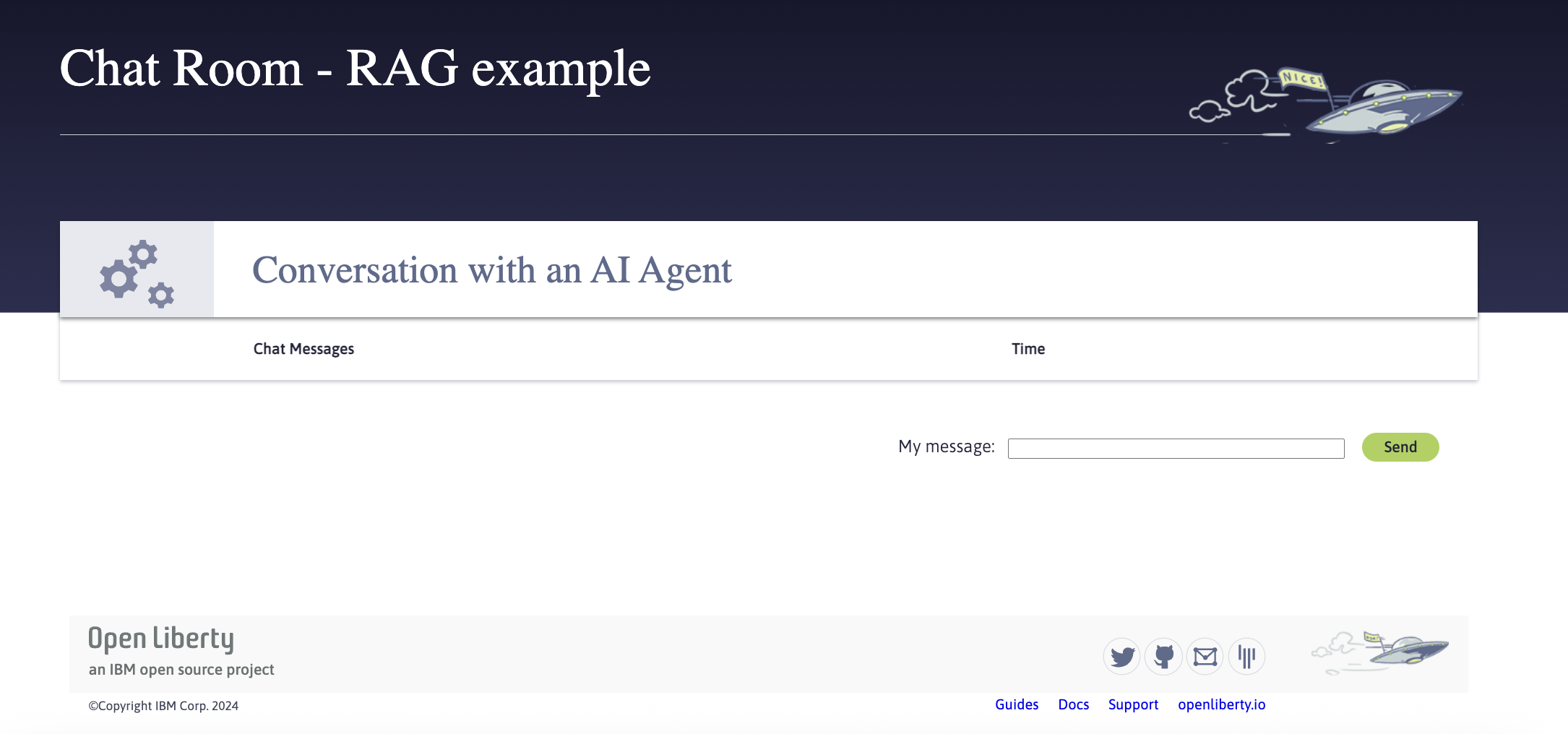
At the prompt, try out the following messages at http://localhost:9081/:
-
Explain the Core Profile and Jakarta EE JSON Binding? -
What are the default ConfigSources and the values? List in the order of default precedence.
Before the application uses RAG
Try out different messages at http://localhost:9081/. The suggested messages are provided above. Notice that the AI responses are general and may not capture the complete details from the knowledge base.
Initialize the database by navigating to http://localhost:9081/openapi/ui/. See the OpenAPI user interface (UI).
-
Login to try a particular API.
-
For authentication purposes and for admin access, use
bobas the username and his password isbobpwd. -
For authentication purposes and for read only limited access, use
aliceas the username and her password isalicepwd.
-
-
Try the POST request at
/api/embedding/initwhich processes and adds the knowledge base fromsample-langchain4j/rag-db/src/main/resources/knowledge_base.
Now, the application uses RAG
Navigate to http://localhost:9081/. At the prompt, try out the suggested messages again.
Compare the AI responses to the knowledge base files at the sample-langchain4j/rag-db/src/main/resources/knowledge_base directory. The response should be more specific and relevant compared to the responses before.
You can try out adding your own data into the database directly by using the POST /api/embedding API and then try out messages in the RAG chat application.
Note that the embeddings and content that are stored in MongoDB previously are preserved even after restarting the application by stopping and running ./mvnw liberty:dev again.
To ensure that the application works successfully, you can run the tests by pressing the enter/return key from the command-line session. If the tests pass, you can see output similar to the following example:
[INFO] -------------------------------------------------------
[INFO]  T E S T S
[INFO] -------------------------------------------------------
[INFO] Running it.io.openliberty.sample.langchain4j.RAGChatServiceIT
[INFO] ...
[INFO] Tests run: 2, Failures: 0, Errors: 0, Skipped: 0, Time elapsed: 4.329 s -- in it.io.openliberty.sample.langchain4j.RAGChatServiceIT
[INFO] ...
[INFO] Running it.io.openliberty.sample.langchain4j.EmbeddingServiceIT
[INFO] ...
[INFO] Tests run: 4, Failures: 0, Errors: 0, Skipped: 0, Time elapsed: 1.668 s -- in it.io.openliberty.sample.langchain4j.EmbeddingServiceIT
[INFO]
[INFO] Results:
[INFO]
[INFO] Tests run: 6, Failures: 0, Errors: 0, Skipped: 0
How does the application work?
The application demonstrates how to use the LangChain4j APIs, MongoDB Atlas database, Jakarta Contexts and Dependency Injection, Jakarta WebSocket, MicroProfile Config, and MicroProfile Metrics features. We will go through a step by step process to create a RAG application.
Connecting to MongoDB Atlas
The docker-compose file is used to create a local containerized MongoDB Atlas database using the mongodb/mongodb-atlas-local image.
The database credentials are set inside the environment. Furthermore, the ports connect the host port to the container MongoDB port at 27017.
services:
  mongodb:
    image: mongodb/mongodb-atlas-local
    environment:
      - MONGODB_INITDB_ROOT_USERNAME= ...
      - MONGODB_INITDB_ROOT_PASSWORD= ...
    ports:
      - 27017:27017
Inside the mongo directory, MongoProducer class produces a MongoDatabase object that is used in other classes, and the AtlasMongoDB.java file contains methods to create search indexes, retrieve similar content, remove, update, or delete the database contents.
In MongoProducer.java, various configuration properties are injected from the microprofile-config.properties.
    @Inject
    @ConfigProperty(name = "mongo.dbname", defaultValue = "embeddingsdb")
    String dbName;

    @Inject
    @ConfigProperty(name = "mongo.user")
    String user;

    @Inject
    @ConfigProperty(name = "mongo.pass.encoded")
    String encodedPass;
The createMongo() function decodes the password and uses a connection string in the form of: "mongodb://" user + ":" + password + "@" hostname + ":" + port + "/" dbName "?authSource=admin&directConnection=true" to produce a MongoClient object.
The MongoDatabase object is produced by invoking the getDatabase(dbName) method on the MongoClient instance and it creates the database if the database with that name did not exist before.
The close(MongoClient) method closes the connection.
@Produces
    public MongoClient createMongo(){
        String password = PasswordUtil.passwordDecode(encodedPass);
        return MongoClients.create(MongoClientSettings.builder()
                           .applyConnectionString(
                               new ConnectionString("mongodb://" +
                                   user + ":" + password + "@"+ hostname + ":" + port +
                                   "/" +dbName+ "?authSource=admin&directConnection=true"))
                           .build());
    }

    @Produces
    public MongoDatabase createDB(MongoClient client) {
        return client.getDatabase(dbName);
    }

    public void close(@Disposes MongoClient toClose) {
        toClose.close();
    }
This MongoDatabase object will be used by other classes.
Building REST APIs to manage the vector database
The EmbeddingApplication.java and the EmbeddingService.java are used to build the REST APIs to manage the vector database.
The embedding application is created at /api in EmbeddingApplication.java.
@ApplicationPath("/api")
public class EmbeddingApplication extends Application {

}
You can explore the REST APIs that are available on http://localhost:9081/openapi/ui/. This tutorial explores the two different POST requests: one request adds a document with summary and content while the other initializes the database with the knowledge base. Moreover, this post further elucidates how the PUT and the DELETE requests are implemented.
The EmbeddingService.java implements various REST APIs at the application path /embedding.
Additionally, the AtlasMongoDB class provides relevant functions such as creating search indexes, or retrieving similar content that is used by the EmbeddingService class.
POST request at /api/embedding
After the user inputs their own summary and content for the POST request, the method below is invoked.
A new BSON Document object is created and contains three keys: "Summary", "Content", and "Vector" with their respective values. The content entered by the user is converted to a vector using LangChain4j APIs such as embed, content, and vector.
The insertOne method then inserts this Document object into the existing collection.
To explore how the insertOne method works, visit AtlasMongoDB.java.
    Document newEmbedding = new Document();
    newEmbedding.put("Summary", summary);
    newEmbedding.put("Content", content);
    newEmbedding.put("Vector",
            toFloat(modelBuilder.getEmbeddingModel().embed(content).content().vector()));
    mongoDB.insertOne(newEmbedding);
Thus, this request provides the ability to add custom summary and content so that it can be used during RAG.
POST request at /api/embedding/init
In EmbeddingService.java, the POST request initializes the MongoDB database from the knowledge_base directory inside resources.
Before the application executes a vector search (during inference), a search index must be created.
The text of each file in the knowledge base is extracted. The summary is the first line in the file and the content is the rest of the file. Each Document object contains a summary, content, and embedding vector of the summary. Each document is inserted into the MongoDB Atlas database.
    @POST
    @Path("/init")
    ...
    public Response initializeDatabase() {
        if (mongoDB.isEmpty()) {
            mongoDB.createIndex();
            try {
                ClassLoader classLoader = EmbeddingService.class.getClassLoader();
                for (String txtFile : MD_FILES) {
                    InputStream inStream = classLoader.getResourceAsStream("knowledge_base/" + txtFile);
                    if (inStream != null) {
                        InputStreamReader reader = new InputStreamReader(inStream, StandardCharsets.UTF_8);
                        BufferedReader br = new BufferedReader(reader);
                        String summary = br.readLine();
                        StringBuffer content = new StringBuffer();
                        String line;
                        while ((line = br.readLine()) != null) {
                            content.append(line).append("\n");
                        }
                        br.close();
                        reader.close();
                        inStream.close();
                        Document newEmbedding = new Document();
                        newEmbedding.put("Summary", summary);
                        newEmbedding.put("Content", content.toString());
                        newEmbedding.put("Vector",
                                toFloat(modelBuilder.getEmbeddingModel().embed(summary).content().vector()));
                        mongoDB.insertOne(newEmbedding);
                    }
                }
                //Return Response with Status.OK: Successfully loaded knowledge base into MongoDB.
                ...
            } catch (Exception exception) {
                ...
                //Return Response with internal server error
            }

        }

        //Return Response with Status.OK since knowledge base is already initialized.
    }
The createIndex() method in AtlasMongoDB.java generates a search index after creating a new collection called EmbeddingsStored. Furthermore, the createSearchIndexes method from MongoDB uses information
such as the vector dimension of the embedding model, the cosine similarity, and the path (location of the vector inside the document).
    public void createIndex() {

        db.createCollection(COLLECTION_NAME);
        MongoCollection<Document> embeddingStore = db.getCollection(COLLECTION_NAME);

        Bson documentDefinition = new Document("fields",
            Collections.singletonList(
                new Document("type", "vector")
                    .append("path", PATH)
                    .append("numDimensions", modelBuilder.getEmbeddingModel().dimension())
                    .append("similarity", "cosine")));
        SearchIndexType vectorSearch = SearchIndexType.vectorSearch();
        List<SearchIndexModel> searchIndexModels = Collections.singletonList(
                new SearchIndexModel(SEARCH_INDEX_NAME, documentDefinition, vectorSearch));

        sleep(TIMEOUT);
                embeddingStore.createSearchIndexes(searchIndexModels);
        ...
    }
The createSearchIndexes method executes the request. The loop verifies that the search indexes are ready when the queryable value becomes true.
    public void createIndex() {
        ...
        boolean indexReady = false;
        do {
            Document index = embeddingStore.listSearchIndexes().first();
            JSONObject json = new JSONObject(index.toJson());
            boolean queryable = json.getBoolean("queryable");
            if (queryable && json.getString("name").equals(SEARCH_INDEX_NAME)) {
                indexReady = true;
                break;
            }
        } while (!indexReady);
    }
PUT request at /api/embedding/{id}
The PUT request updates the existing content and summary of a document given the object ID. A new Document object with summary, content and updated vector replaces the existing object by using the replaceOne method.
DELETE request at /api/embedding/{id}
Likewise, the DELETE request requires the object ID and uses the deleteOne method to delete a particular document.
GET request at /api/embedding
The GET request lists the embeddings from the database using the retrieve method. It uses the mongoDB.getCollection().find() that returns all the Document objects from MongoDB.
Retrieving data from the vector database
In the first step, the user interacts with the RAG Chat Application.
The ChatService class controls what happens upon any action on the http://localhost:9081/.
When a message is sent by the user, the onMessage() function is executed.
The user query is converted to an embedding vector which is a List<Float>.
Then the retrieveContent, method of the AtlasMongoDB class, performs the vector search and returns
the text segments that are similar to the user query.
The message is appended with these results and sent to the AI using the agent.chat(sessionId, message);
    @OnMessage
    @Timed(name = "chatProcessingTime", absolute = true,
           description = "Time needed for chatting with the agent.")
    public void onMessage(String message, Session session) {
        ...
            String sessionId = session.getId();
            float[] userQueryEmbedding = mongoDB.convertUserQueryToEmbedding(message);
            List<Float> result = toFloat(userQueryEmbedding);
            List<String> output = mongoDB.retrieveContent(result, message);
            message += "Here are some relevant sections/information from the knowledge base: ";
            message += output;
            String answer = agent.chat(sessionId, message);
        ...

    }
The retrieveContent method takes an embedding vector of type List<Float>, and the actual query text. Note that the user message embedding is converted to a List<Float> because the vectors stored in the database are also of type List<Float>.
The userQuery vector, the location or PATH to where the vectors are stored in the database and other values are required to perform the vector search. Vector search selects NUM_CANDIDATES vectors in the nearby group in the latent space, and returns MAX_RESULTS_TO_AI number of documents, based on the SEARCH_INDEX_NAME. The aggregate returns the results for the $vectorSearch command and each result is a type of Document object.
    public List<String> retrieveContent(List<Float> userQuery, String query) {
        List<String> similarContent = new ArrayList<>();
        Document vecSearchDocument = new Document("queryVector", userQuery)
            .append("path", PATH)
            .append("numCandidates", NUM_CANDIDATES)
            .append("limit", MAX_RESULTS_TO_AI)
            .append("index", SEARCH_INDEX_NAME);
        Bson vectorSearch = new Document("$vectorSearch", vecSearchDocument);
        AggregateIterable<Document> results = getCollection().aggregate(Arrays.asList(vectorSearch));
        for (Document result : results) {
            similarContent.add(result.getString("Content"));
        }
        return similarContent;
    }
The method result.getString("Content") obtains the content inside the Document object for each of the results.
Conclusion: Building AI Applications powered by RAG and Open Liberty
In this sample application, we have explored how to use a local MongoDB Atlas database and perform vector search to gain similar text results from the user query based on context. We have also seen a separate API to initialize the database with the knowledge base as depicted in the OpenAPI UI. Moreover, the chat room application is built upon LangChain4j APIs to connect to the AI providers. LangChain4j APIs are used to chat with the LLM, and also provide the respective embedding models.
A few advantages for using RAG in an AI powered application include:
-
Increased context understanding - Relevant answers based on context compared to regular search mechanisms
-
Efficient in terms of time and cost - RAG provides an easy way to get relevant answers which is time and cost effective compared to training large models on proprietary information.
-
Hallucination reduction - With more information provided to the LLM, the AI is better equipped to generate accurate and reliable content.
-
Improved response - Improve the response based on industry or domain-specific information
As RAG evolves with new capabilities, context-aware insights continue to enhance the quality of AI-generated responses.
Where to next?
Check out the Open Liberty guides for more information and interactive tutorials that walk you through using more Jakarta EE and MicroProfile APIs with Open Liberty.


